
Silk Mobile
Table of Contents (Homepage)
- Overview
- Setting Up
- Getting Started
- How To
- Connecting Devices And Emulators
- Preparing Applications For Testing
- Managing Applications
- Recording Tests
- Working With Test Commands
- Adding Commands To Your Scripts
- Object Commands
- Click
- ClickCoordinate
- ClickIn
- ClickOffset
- Drag
- ElementGetProperty
- ElementGetTableRowsCount
- ElementListPick
- ElementListSelect
- ElementListVisible
- ElementScrollToTableRow
- ElementSendText
- ElementSetProperty
- ElementSwipe
- ElementSwipeWhileNotFound
- GetAllValues
- GetElementCount
- GetElementCountIn
- GetTextIn
- IsElementBlank
- IsElementFound
- IsFoundIn
- LongClick
- RunNativeAPICall
- SendWhileNotFound
- VerifyElementFound
- VerifyElementNotFound
- VerifyIn
- WaitForElement
- WaitForElementToVanish
- GetCoordinateColor
- DragDrop
- Application Commands
- Device Commands
- Web (Hybrid) Specific Commands
- Utilities Commands
- Monitoring Commands
- Configuration Commands
- ExtractLanguageFiles
- SetDefaultClickDownTime
- SetDefaultTimeOut
- SetDefaultWebView
- SetDragStartDelay
- SetInKeyDelay
- SetKeyToKeyDelay
- SetLanguage
- SetLanguagePropertiesFile
- SetShowImageInReport
- SetShowPassImageInReport
- SetShowReport
- SetSpeed
- SetThrowExceptionOnFail
- SetWebAutoScroll
- StartStepsGroup
- StopStepsGroup
- TextFilter
- Miscellaneous Commands
- Controlling Element Identification Rules
- Editing Test Objects
- Executing Test Scripts
- Report Of Executed Test
- Working From Code Environment
- Continuous Integration
- Layout Verification Tests
- Use Device Vitals Monitors
- Troubleshooting
- Terminology
Adding Commands To Your Scripts
In the following section you will find an explanation for all the commands available in Silk Mobile.
Before that - How to add a new command to your script?
Watch a Video Tutorial:
Follow the steps below:
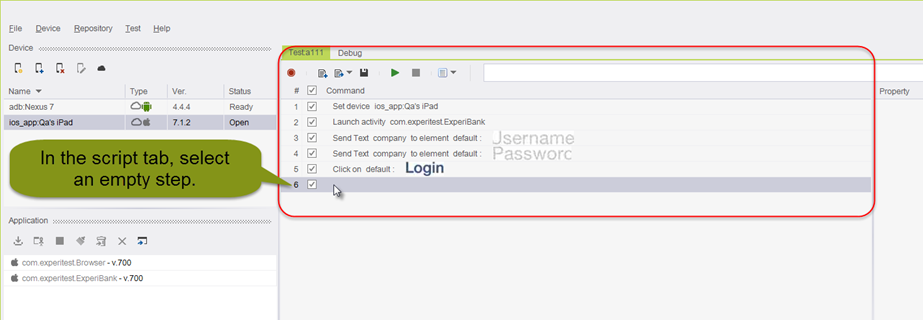
Step 1: In the "Test" tab select an empty step.
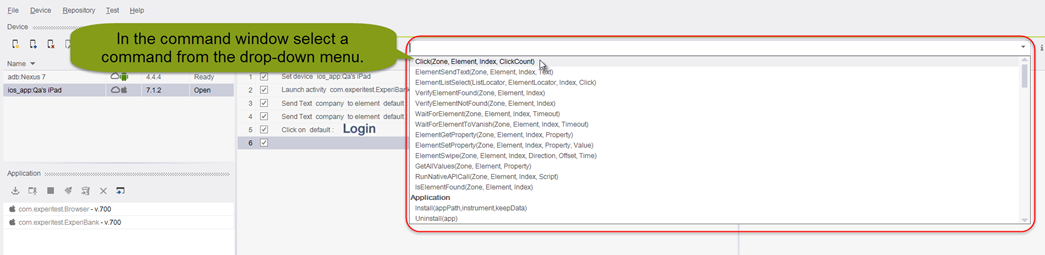
Step 2: Type the name of the command, or in the command window, select a command from the drop-down – for example select the "Click" command.
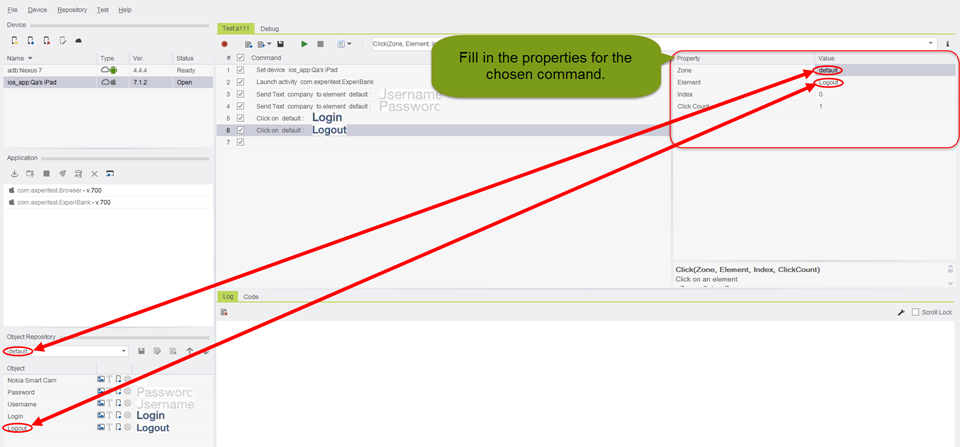
Step 3: Fill in the properties for the chosen command
On-Screen Adding Dynamic Commands (another way to add commands)
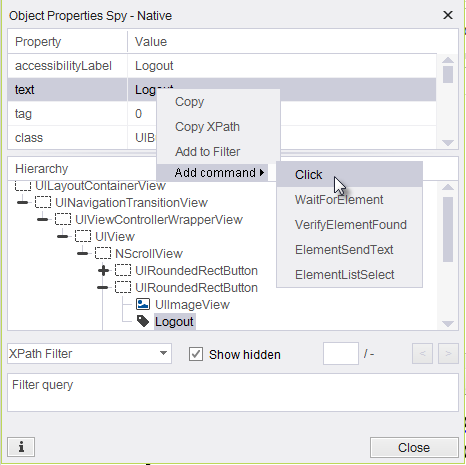
The Object Spy feature allows you to investigate the Native properties of an Element.
Using the Object Spy you can add Commands directly by clicking on the Element's property:
Step 1: After you have instrumented your application and used the Object Spy feature - click on the Element which you want to execute a command on (Object Spy feature - steps 1-2)
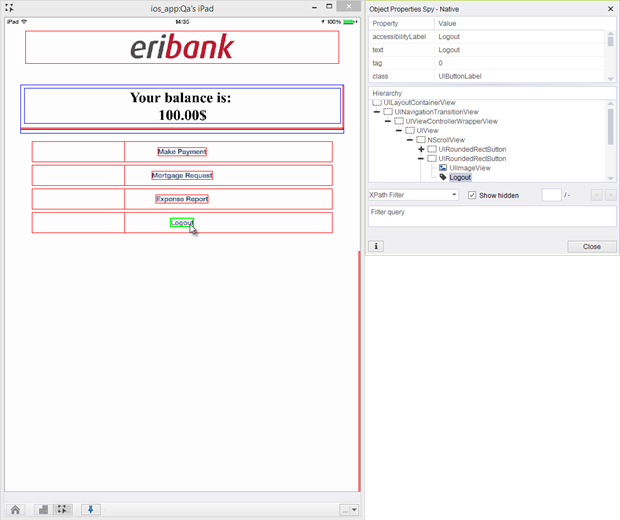
Step 2: Right-click on the Element's property -> Add Command -> Choose the command which you would like to add and the Command will be added to the script.
You can now move on to the next step in the test.